
Have you ever visited a website where the text was difficult to read, an image provided no useful description or an enquiry form was hard to complete?
For some visitors, these are not minor inconveniences but barriers that can stop them from accessing important information or contacting a business. Even a professionally designed website may leave people behind if accessibility is not considered.
Website accessibility focuses on making website content and features usable by people with different abilities. It considers how visitors read information, interact with controls and access digital content. Whether you are building a new website or improving an existing one, professional web design services can help you consider accessibility from the planning stage.
What Is Website Accessibility?
Website accessibility means designing and developing websites so people with different abilities can access information and use features without unnecessary barriers. This includes visitors with visual, hearing, physical, speech or cognitive disabilities, who may interact with websites in different ways.
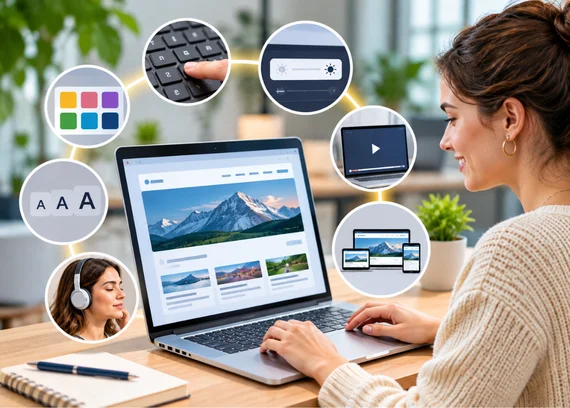
For example, image descriptions help screen reader users understand visual content, while keyboard-friendly controls allow visitors to navigate without a mouse. Captions make video information available to people who cannot hear the audio, and readable text makes content easier to follow. The Web Content Accessibility Guidelines (WCAG) provide internationally recognised recommendations to help website owners identify accessibility requirements and improve how people access digital content.
Why Is Website Accessibility Important for Businesses?
Website accessibility helps businesses make their services and information available to a wider range of people. When visitors can read content, explore service details and complete enquiries without unnecessary barriers, they have a better opportunity to engage with the business.
It also improves the experience for everyday users. Clear instructions, readable text and predictable website controls make information easier to find and understand, regardless of how someone accesses the site. Beyond usability, accessibility reflects a business’s consideration for different customer needs. Making practical improvements shows that your website is designed to welcome people with different abilities rather than exclude them from accessing your services.
Why Is Website Accessibility Important for Businesses?
Making your website accessible is not just about meeting different user needs. It also helps businesses create a better experience for visitors and make their services easier to access.
- People with different abilities should be able to explore your services, read important information and submit enquiries without facing unnecessary barriers. This gives more visitors an opportunity to engage with your business.
- Readable text, clear instructions and predictable controls make website content easier to understand and interact with. These improvements can benefit all visitors, not only those with disabilities.
- An accessible website shows that your business considers different customer needs. It helps create a welcoming online experience where more people can access information and explore your services.
Understanding the Four Principles of Website Accessibility
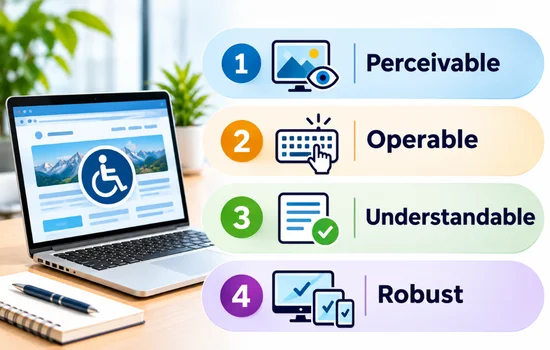
The Web Content Accessibility Guidelines (WCAG) are based on four principles that help make digital content accessible to people with different abilities. These principles provide a useful foundation for planning and reviewing website features.
1. Perceivable
Visitors should be able to access information through their available senses. For example, meaningful images need text descriptions, and videos containing speech should include captions so information is not limited to one format.
2. Operable
Website features should work with different input methods. Visitors must be able to access menus, buttons and forms using a keyboard rather than relying entirely on a mouse.
3. Understandable
Content and interactions should be clear and predictable. Use straightforward language, descriptive button labels and helpful form instructions so visitors know what to expect.
4. Robust
Website content should work reliably across different browsers, devices and assistive technologies. This helps ensure that people using tools such as screen readers can access and interact with website features.
Practical Ways to Make Your Website More Accessible
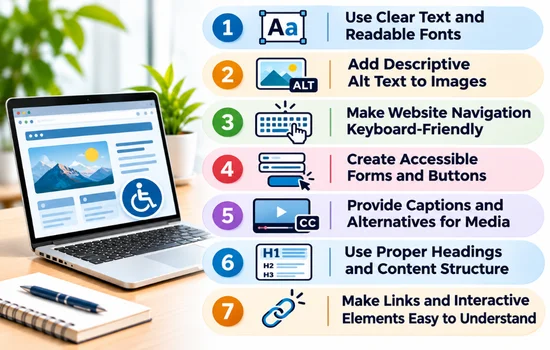
Improving website accessibility does not always require major changes. Small adjustments to text, images, navigation and interactive features can make it easier for visitors with different abilities to use your website. Here are seven practical areas to review.
1. Use Clear Text and Readable Fonts
Choose simple, readable fonts and text sizes that visitors can comfortably read across different devices. Maintain sufficient contrast between text and its background so information remains visible to people with low vision. Break lengthy content into shorter paragraphs and use straightforward language to explain your services. Avoid using colour alone to highlight important information, such as form errors or required fields. Combine colour with clear text, icons or other visual indicators so the meaning remains understandable.
2. Add Descriptive Alt Text to Images
Alt text provides a written description of an image for visitors using screen readers. Describe meaningful images according to their purpose rather than listing unrelated keywords or copying the image filename. For example, an image showing an electrician installing a switchboard could have alt text describing that activity. This helps visitors understand visual information even when they cannot see the image. Decorative images that do not add useful information can generally use empty alt text so screen readers can skip them.
3. Make Website Navigation Keyboard-Friendly
Not everyone uses a mouse to browse a website. Some visitors rely on a keyboard to move between links, menus, buttons and forms. Check that these elements can be accessed using keys such as Tab, Enter and Space. A visible focus indicator should show which element is currently selected, helping users understand their position on the page. Avoid interactive features that only respond to mouse clicks, as they can prevent keyboard users from accessing important website sections.
4. Create Accessible Forms and Buttons
Forms are often where visitors complete important actions, such as requesting a quote or contacting your business. Give every input field a clear label rather than relying only on placeholder text that disappears when someone starts typing. Use descriptive button labels such as “Request a Quote” or “Send Enquiry” so visitors understand the action. Clearly identify required fields and provide helpful error messages when information is missing or entered incorrectly. This makes it easier for visitors to complete forms without guessing what needs to be corrected.
5. Provide Captions and Alternatives for Media
Videos and audio content should not depend entirely on sound to communicate information. Add accurate captions to videos containing speech or meaningful audio so people who cannot hear the content can follow along. Transcripts can also provide an alternative way to access recorded audio, particularly for interviews and educational content. If a video includes important visual information that is not explained through its audio, consider providing an appropriate description. Ensure media controls can also be accessed and operated using a keyboard.
6. Use Proper Headings and Content Structure
Organise website content using a logical heading hierarchy, starting with the main H1 heading followed by relevant H2 and H3 sections. Each heading should describe the information that follows, helping visitors and screen reader users understand how the content is organised. Use bullet points or numbered lists when presenting related information instead of placing everything in long paragraphs. Do not select heading levels simply because they look larger or smaller. Their order should reflect the actual structure of the information.
7. Make Links and Interactive Elements Easy to Understand
Visitors should understand where a link leads or what happens when they select a button. Use descriptive link text such as “View our web design services” instead of relying on vague phrases like “click here”. Give interactive elements meaningful names so screen readers can communicate their purpose to users. Important actions should also be visually distinguishable from surrounding content. When labels clearly describe their purpose, visitors can make informed decisions before interacting with different website features.
Review each feature from the visitor’s perspective and make accessibility part of your regular website maintenance rather than treating it as a one-time task.
Common Website Accessibility Mistakes to Avoid
Some website features may appear simple to use but can create difficulties for visitors with different abilities. Watch out for these common mistakes:
- Low-contrast text: Makes written information difficult to distinguish from the background, particularly for people with low vision.
- Missing image descriptions: Leaves screen reader users without useful information about meaningful images.
- Placeholder-only form fields: Can make it difficult to identify what information a field requires once the placeholder disappears.
- Keyboard-inaccessible menus: Prevents visitors who do not use a mouse from reaching important website sections.
- Colour-only indicators: Can make errors or important messages difficult to recognise for people who have difficulty distinguishing colours.
- Videos without captions: Excludes visitors who cannot hear spoken information.
- Vague link and button labels: Leaves visitors uncertain about the destination or action before selecting an element.
Identifying these issues early can help prevent accessibility barriers across your website.
How to Test Your Website for Accessibility
Do not assume your website is accessible simply because it looks good and works with a mouse. Regular testing can help identify issues that visitors may experience.
- Use tools such as WAVE or axe DevTools to detect potential problems with page elements, contrast and accessibility attributes.
- Browse your website using Tab, Shift + Tab, Enter and Space to check whether important features are accessible without a mouse.
- Check whether page content, image descriptions, form fields and buttons are announced in a meaningful order.
- Inspect text contrast, heading structure, form instructions and error messages to identify issues that automated tools may miss.
Automated tools are useful for finding common problems, but they cannot detect every accessibility barrier. Combine automated checks with manual testing for a more reliable assessment.
Make Website Accessibility Part of Your Website Plan
Website accessibility helps more people access your content, understand your services and interact with important features. Readable text, descriptive images, keyboard-friendly controls and clear forms all contribute to a more inclusive experience. Start by reviewing your existing website, identifying areas that create difficulties and addressing them one step at a time.
Accessibility should be considered throughout website planning, design and ongoing maintenance. If you are planning a new website or improving an existing one, explore Revolution Hub’s web design services to create a website that considers the needs of a wider audience.