

Slow website can make it harder for visitors to find information, browse products or contact your business. When pages take too long to load, people may leave before they see what you offer. Speed problems can also affect how easily visitors use your site on mobile devices, where network connections and device performance can vary.
The good news is that many speed issues can be improved once you identify their cause. Large image files, slow hosting, missing caching settings and unnecessary scripts can all affect loading times. In this guide, you’ll learn **how to improve website speed** by testing key pages, finding performance problems and applying practical fixes. Rather than focusing on one speed score, you’ll learn how to measure progress and check whether your changes improve the experience for visitors.
Why Does Website Speed Matter?
Website speed affects how easily visitors can use your business website. When pages take too long to load, people may struggle to find information, browse products or reach your contact page. A website that responds promptly helps visitors complete these tasks with fewer interruptions.
Slow performance can also affect everyday website functions. For example, a delayed menu can make navigation frustrating, while a slow contact form may discourage visitors from sending an enquiry. These issues matter on mobile devices as well as desktop computers, particularly when visitors use mobile data or older devices.
However, speed is only one part of a good website experience. Visitors also need useful content, clear navigation and readable page layouts. The goal is to make your website load quickly, respond reliably and display content correctly, rather than focusing only on achieving a perfect performance score.
How to Test Your Website Speed
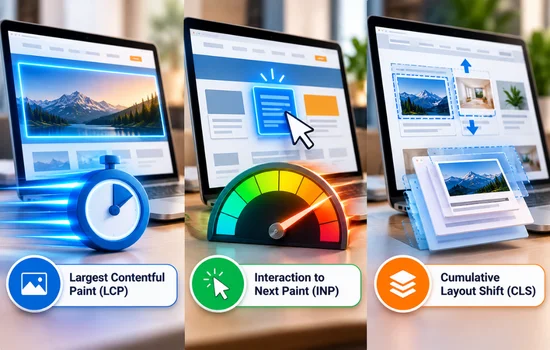
Before changing your website settings, test its current performance to identify where improvements are needed. Google PageSpeed Insights is a useful starting point because it provides mobile and desktop reports, along with information about loading speed, responsiveness and layout stability.
Pay attention to the three Core Web Vitals, which measure important aspects of the user experience:
- Largest Contentful Paint (LCP): Measures how quickly the main content becomes visible. A good result is 2.5 seconds or less.
- Interaction to Next Paint (INP): Measures how quickly the page responds to user interactions. Aim for 200 milliseconds or less.
- Cumulative Layout Shift (CLS): Measures unexpected movement in page content. Aim for a score of 0.1 or less.
These good thresholds are assessed at the 75th percentile of visits, meaning at least 75% of visits should meet the target.
Test your homepage, key service pages and pages that generate enquiries. Record the initial results so you can compare them after making changes. Remember, a score is a diagnostic tool, not a complete picture of every visitor’s experience.
How to Improve Website Speed and Performance
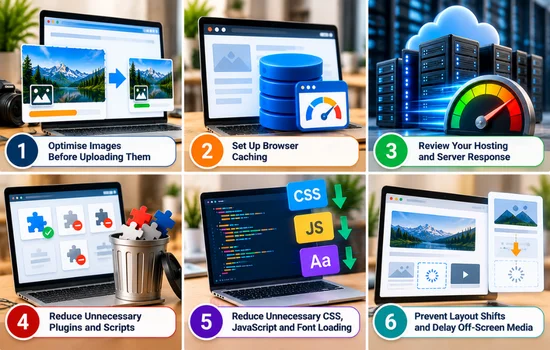
Improving website speed starts with identifying what is slowing your pages down and fixing the causes that have the greatest impact. The following practical steps cover common performance issues, from large image files to website code and server settings.
1. Optimise Images Before Uploading Them
Large image files increase the amount of data a webpage needs to load, which can slow down pages, particularly on mobile connections. Optimising images helps reduce file sizes while keeping them clear enough for visitors to view.
To improve image performance, follow these steps:
- Resize images to fit their display size: Match image dimensions to the space they occupy. A small thumbnail does not need the same dimensions as a full-width banner.
- Compress images before uploading: Reduce file sizes while maintaining acceptable visual quality.
- Choose modern image formats: Use WebP or AVIF where supported to reduce file sizes compared with some traditional formats.
- Avoid uploading oversized originals: Resize photographs from cameras or design tools when smaller versions will look just as good on your website.
- Use responsive images: Where supported, serve appropriately sized images to different screen sizes so mobile visitors do not download unnecessarily large files.
- Apply lazy loading carefully: Use lazy loading for images further down the page that are not immediately visible. Avoid lazy-loading the main hero image or another image responsible for Largest Contentful Paint (LCP), as delaying it can make the page appear slower.
Review your largest images first, as reducing their file sizes can be a useful starting point when improving page loading performance.
2. Set Up Browser Caching
Browser caching allows visitors’ browsers to store eligible website files, such as images, fonts and CSS, so they can reuse them on later visits instead of downloading everything again. This can help returning visitors load pages faster and reduce repeated requests to your server.
To set up caching effectively, consider these steps:
- Configure cache headers: Set suitable caching rules for static files so browsers know how long to keep them.
- Use your hosting or caching tools: Check whether your hosting provider offers caching features or install a suitable caching tool for your website platform.
- Handle updated files correctly: Ensure changes to images, stylesheets and scripts appear when needed, rather than leaving visitors with outdated versions.
- Test different user experiences: If your website has accounts, forms or ecommerce features, check both logged-in and logged-out views to ensure caching does not affect personalised content or functionality.
Caching can improve repeat visits, but it will not automatically resolve every cause of slow initial loading. Image sizes, server response times and page code may still need attention.
3. Review Your Hosting and Server Response
Your website’s server needs to respond to a browser’s request before the page can finish loading. If that response takes too long, reducing image sizes alone may not make a noticeable difference. The cause could be limited server resources, slow database queries or application processes that take too long to complete.
To investigate server performance, focus on these areas:
- Check your hosting plan: Make sure its resources are suitable for your website’s traffic, features and technical requirements.
- Review server response time: Use performance reports and hosting logs to identify delays or resource limits.
- Investigate database issues: For dynamic websites, look for slow queries or application tasks that delay page delivery.
- Consider a CDN: A content delivery network can serve static files from locations closer to visitors, which is useful when your audience is spread across regions.
- Review redirects: Remove unnecessary redirect steps that delay visitors from reaching the intended page.
Before upgrading hosting, identify the actual bottleneck. A more expensive plan will not necessarily help if the underlying issue is inefficient code or unnecessary redirects.
4. Reduce Unnecessary Plugins and Scripts
Analytics tools, advertising scripts, chat widgets and image sliders are worth reviewing if pages take longer to load or respond.
Use these steps to reduce unnecessary overhead:
- Remove unused plugins: Delete plugins and integrations that are no longer needed, after checking that they are not supporting another feature.
- Avoid duplicate functionality: Check whether multiple tools perform the same task, such as forms, pop-ups or tracking.
- Review third-party scripts: Identify whether analytics, advertising or chat tools delay page loading or user interactions.
- Delay non-essential scripts: Where technically appropriate, load less important scripts after the main page content.
- Test key features: Check forms, menus, tracking, checkout and other important functions after making changes.
The code quality of each plugin, the resources it loads and how it operates have a greater influence than the total plugin count. Remove tools based on evidence, not simply to achieve a lower number.
5. Reduce Unnecessary CSS, JavaScript and Font Loading
Website stylesheets, scripts and fonts affect how quickly a page displays and responds to visitors. If a page loads code it does not need, the browser may spend extra time downloading and processing those resources before important content or interactions are ready.
To improve resource loading, consider these adjustments:
- Remove unused code: Identify CSS and JavaScript that are no longer required, making sure other website features do not depend on them.
- Minify files: Remove unnecessary characters from code files to reduce their transfer size.
- Defer non-critical scripts: Allow scripts that are not needed immediately to load or run later, where appropriate.
- Limit font variations: Keep only the font families, weights and styles used across your website.
- Set font-display appropriately: Use suitable font-display settings so text can appear while web fonts load.
Avoid combining or delaying files without testing. These changes can affect menus, forms, analytics and other functions, so check key pages after each significant adjustment.
6. Prevent Layout Shifts and Delay Off-Screen Media
These unexpected movements, known as layout shifts, can cause people to select the wrong link or lose their place on the page. Reducing them helps create a more stable browsing experience and supports a better Cumulative Layout Shift (CLS) score.
Use these practices to keep your page layout stable:
- Set image dimensions: Specify width and height so the browser can reserve space before images load.
- Reserve space for dynamic content: Allocate room for advertisements, embedded media and banners where possible.
- Lazy-load off-screen media: Load suitable images and video embeds when visitors approach them.
- Control animations: Avoid effects that unexpectedly push other content around.
- Review pop-ups: Ensure pop-ups and dynamically inserted elements do not shift the page after reading begins.
Planning space for content before it appears helps the browser maintain a consistent layout as the page loads.
Check Website Speed on Mobile Devices
A website that performs well on a desktop may still feel slow or difficult to use on a mobile phone. Smaller screens, limited processing power and slower network connections can affect how quickly content appears and how easily visitors interact with your pages.
Use PageSpeed Insights’ mobile report to identify potential performance issues, then check important pages on an actual phone. Pay attention to these details:
- Does the main content appear without a long delay?
- Are menus, buttons, contact forms and booking tools easy to use?
- Do large images or pop-ups make the page difficult to navigate?
- Can visitors interact with the page while other resources are loading?
Testing on a real device helps uncover usability problems that a desktop report alone may not reveal.
Prioritise Fixes and Measure the Results
Start with the pages and performance metrics that need attention, then identify the resource or behaviour causing the issue.
Follow this process to track your progress:
- Identify the problem: Review your initial report to find slow pages or poor performance metrics.
- Make a targeted change: Fix one significant issue at a time where practical.
- Retest the page: Compare results under similar conditions.
- Check functionality: Confirm that forms, navigation, tracking and other features still work correctly.
- Monitor ongoing performance: Review real-user field data over time when available.
Focus on improvements that make important pages faster and easier to use, not just changes that increase a score.
When Should You Get Professional Help?
If your website remains slow after basic improvements, professional support can help identify problems that are harder to diagnose. Persistent server delays, database bottlenecks, inefficient code and conflicts between plugins may require technical investigation.
A developer can assess these issues, prioritise suitable fixes and check that important features continue to work correctly. This is particularly useful when your website relies on custom functionality, booking systems or third-party integrations.
If you need help identifying performance issues or improving your website, explore our web design services or contact our team to discuss your requirements.
Website Performance an Ongoing Task
Improving website speed starts with testing important pages, identifying the causes of delays and applying the right fixes. Optimising images, reviewing server performance and reducing unnecessary resources can help pages load and respond more reliably. Always retest your website after making changes to confirm that its features continue to work correctly.
Performance also needs regular attention as you add new content, plugins or integrations. If your website remains slow or requires more technical investigation, explore our web design services or contact our team for help identifying suitable improvements.